
Getting Started with Meetric
Learn how to set up your Meetric account, record your first conversation and start extracting valuable insights from your meetings and calls.
Quick Start#
Get up and running with Meetric in just a few minutes. Follow these steps to start capturing insights from your conversations:
Create Your Account
Sign up and set up your workspace with your team
Connect Your Calendar
Link Google Calendar or Outlook for automatic meeting detection
Record a Meeting
Use our notetaker bot, record in-person or upload existing recordings
View Insights
Get AI-powered summaries, action items and analytics
Account Setup#
Setting up your Meetric account involves a few key steps to ensure you get the most out of the platform.
Creating Your Account#
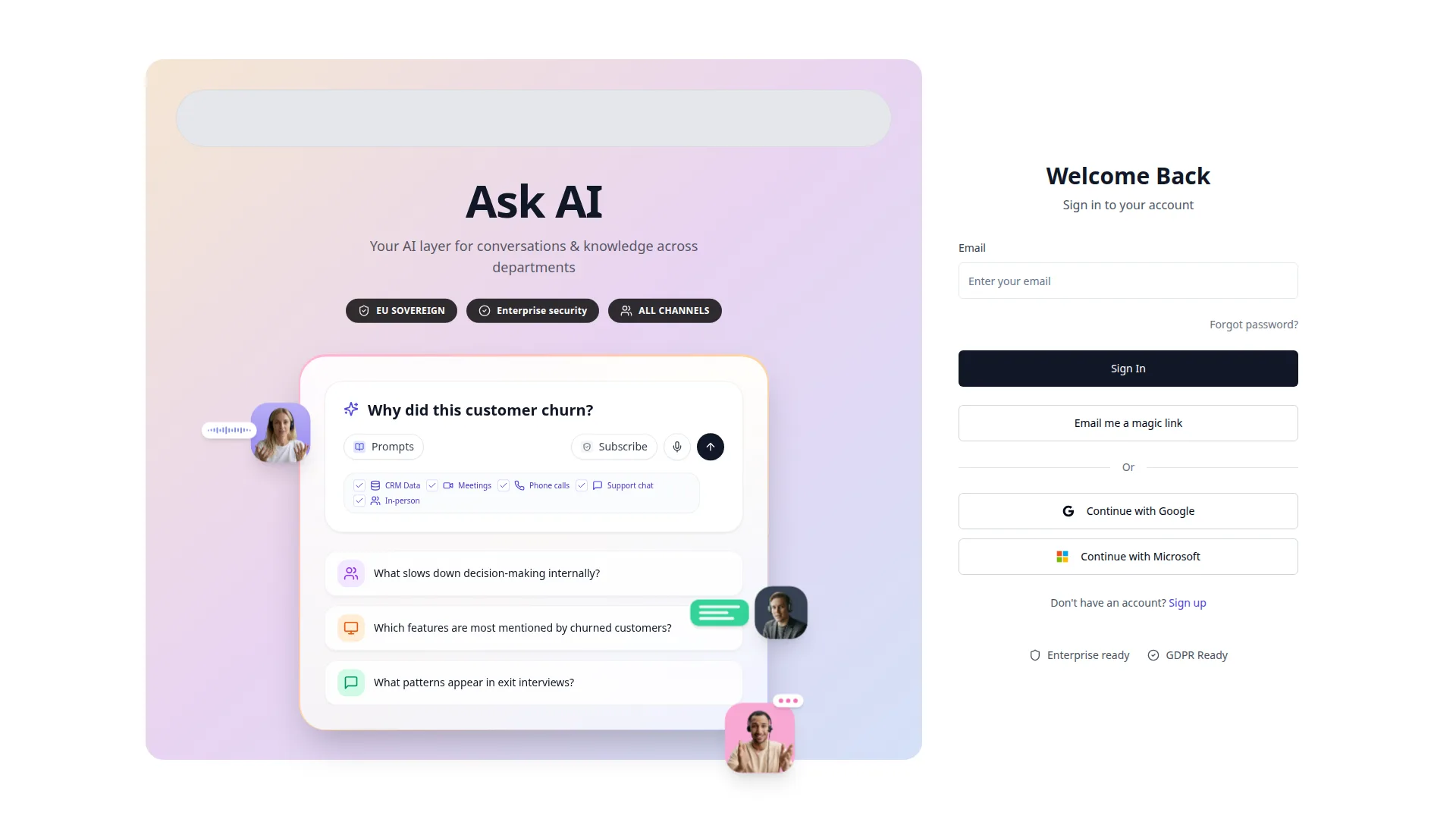
- Visit http://127.0.0.1:46575 and open the sign-in page
- Existing users can sign in with password or choose "Email me a magic link"
- New users are added through an invite/join flow managed by an account admin
- After sign-in, complete your profile details if prompted
Configuring Your Workspace#
After creating your account, you'll want to configure your workspace settings:
Inviting Team Members#
Meetric is designed for teams. Invite your colleagues to collaborate on conversation insights:
- Navigate to Settings → Users
- Click "Add User"
- Enter one user's email and profile details
- Select role, team and optional department details
- Click "Create User"
Team Roles
- Owner: Full account-level access including billing and account lifecycle controls
- Admin: Can manage users, integrations and workspace settings
- Member: Can access conversations and shared insights based on assigned scope
Available roles can vary by account configuration (for example manager).
Your First Conversation#
There are multiple ways to get conversations into Meetric. Choose the method that works best for your workflow.
Using the Meeting Bot#
The easiest way to record meetings is with our AI notetaker bot. It joins your video calls automatically and captures everything.
Automatic Joining
Bot joins scheduled meetings from your connected calendar
Intelligent Recording
Records audio, video and shared screens with speaker identification
Platform Support
Works with Zoom, Google Meet, Microsoft Teams and more
Setting Up the Bot
- Connect your calendar in Settings → Integrations
- Enable "Auto-join meetings" for automatic bot attendance
- Optionally, set rules for which meetings to record (e.g., external only)
- The bot will appear as your configured bot name (default: "Meetric Notetaker") in your meetings
Recording In-person (Live)#
For physical, in-person meetings, you can start a live recording directly in the Meetric web app. Microphone audio is always recorded and you can optionally add screen or camera video.
- Go to Conversations and click New Conversation
- Select the In-person tab
- Add a title, then choose a video source and click Start recording
- When you're done, click Stop and save and wait for the upload to finish
Uploading Recordings#
Already have recordings? Upload them directly to Meetric for processing.
- Go to Conversations and click New Conversation
- Open the Upload file tab
- Add meeting details (title, date/time, department, conversation type, optional participants)
- Select your recording and click Upload and transcribe
Supported Formats
Mobile App Availability#
Meetric is a web app and does not currently have an iOS or Android mobile app.
What to use instead
- In-person meetings: Use In-person recording in the web app.
- Phone recordings: Record with your device, then upload the file to Meetric.
- Video meetings: Use the Meeting Bot for Zoom/Meet/Teams.
Inviting the Bot Manually#
You can also invite the bot to specific meetings on-demand:
Meeting Link Activation
To invite the notetaker to a meeting:
- Go to Conversations and click New Conversation
- Open the Meeting Link tab
- Paste the Zoom, Google Meet or Microsoft Teams meeting link
- Click Request notetaker
Understanding Your Results#
Once your conversation is processed, Meetric provides several types of insights and outputs to help you extract value from your meetings.
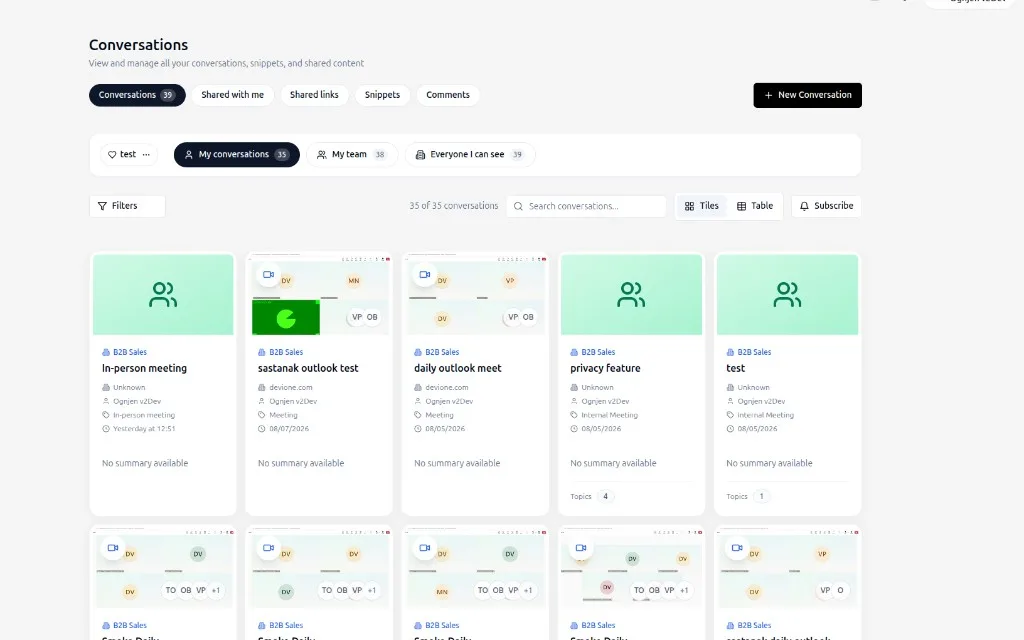
Conversation View#
Each conversation has a dedicated page with all the information and insights:
Full Transcript
Complete word-for-word transcription with speaker labels and timestamps. Click any segment to jump to that point in the recording.
AI Summary
A comprehensive summary highlighting key discussion points, decisions made and the overall context of the conversation.
Action Items
Automatically extracted tasks, next steps and commitments mentioned during the meeting, with assigned owners when identified.
Key Topics
Main themes and subjects discussed, helping you quickly understand what the meeting covered.
Ask Meetric — Your AI Assistant#
Meetric AI is your AI assistant for deeper analysis. Ask questions about your conversations in natural language:
Example questions you can ask:
- "What were the main concerns raised by the customer?"
- "Summarize the pricing discussion from last week's calls"
- "What action items were assigned to Sarah?"
- "How many times did we discuss the timeline?"
Meetric AI can search across all your conversations, compare meetings, identify patterns and provide detailed analysis based on actual transcript content.
Insights Dashboard#
The Insights dashboard aggregates data across all your conversations to show trends and patterns:
- Meeting Volume: Track how many meetings your team is having over time
- Topic Trends: See which topics are being discussed most frequently
- Sentiment Analysis: Understand the overall tone of conversations
- Team Performance: View metrics by team member or department
- Custom KPIs: Define and track metrics specific to your business
What's Next?
Now that you're set up, explore these features to get more value from Meetric:
Explore AI Agents
Set up fields, summaries, playbooks and trackers for your workflows
Master Meetric AI
Learn advanced techniques for getting the most from your AI assistant
Explore Insights
Dive deep into analytics and custom dashboards for your team
Customize Settings
Fine-tune Meetric to match your team's workflow and preferences