
AI Agents
Automate your workflow with AI-powered assistants that extract data, generate summaries, enforce processes and provide continuous intelligence from your conversations.
Why Automate?
Meetric's automations transform your conversations from raw recordings into structured, actionable intelligence. Instead of manually reviewing hours of calls, let AI do the heavy lifting while you focus on high-value activities.
Save Time
Reduce manual data entry and review time by 80%
Increase Consistency
Apply the same analysis to every conversation
Scale Intelligence
Analyze 100s of conversations as easily as one
Automation Types#
Meetric offers four types of automations, each designed for different use cases:
AI Fields
Simple-IntermediateExtract specific data points from conversations into structured fields
Best for: CRM sync, data extraction
AI Summaries
SimpleGenerate custom-formatted summaries based on your prompts
Best for: Quick meeting recaps, custom formats
AI Playbooks
IntermediateScore conversations against your defined process and methodology
Best for: Coaching, process adherence
Keyword Trackers
SimpleTrack specific keywords or concepts across conversations
Best for: Topic tracking, competitor mentions
AI Fields#
AI Fields extract specific pieces of information from conversations into structured, filterable, CRM-syncable fields.
Field Types#
Text Field
Capture free-form text like next steps, objections or pain points
Number Field
Extract numeric values like budget, deal size or quantities
Single Select Field
Choose one option from a predefined list
Multi Select Field
Choose multiple options from a predefined list
Boolean Field
Store yes/no style outcomes
Setting Up AI Fields#
- Go to AI Agents → AI Fields
- Click "Create Field"
- Choose field type and configure:
- Field Name: What you're extracting (e.g., "Budget Range")
- Field Type: Text, Number, Single Select, Multi Select or Boolean
- Description: Help AI understand what to look for
- Extraction Prompt: Instructions for the AI
- Optional values: For select fields, add the allowed options
- Set conversation filters and active/inactive status
- Test on sample conversations, then save
Common AI Field Examples#
Budget Range Extractor
Number Field"Extract any budget amounts, price ranges or financial figures mentioned in the conversation. Include both the low and high end if a range is given."
$50,000 - $100,000Decision Timeline
Date Field"Extract when the customer expects to make a purchase decision. Look for mentions of timelines, deadlines, fiscal periods or decision dates."
Q1 2024 (March 31)Competitor Mentions
List Field"List all competitor names or alternative solutions mentioned during the conversation. Include both direct competitors and indirect alternatives being considered."
[Competitor A, Competitor B, Build in-house]Pain Points
Multiple Choice"Categorize the primary business challenge discussed. Options: Performance Issues, High Costs, Integration Complexity, Scalability, User Adoption, Security Concerns, Other"
Integration Complexity, User AdoptionWriting Effective Extraction Prompts#
The quality of your extraction prompt directly impacts accuracy:
Be specific about what to extract
Use vague instructions
DO: 'Extract the specific dollar amount or range mentioned for annual budget'
DON'T: 'Get budget info'
Provide context and examples
Assume AI knows your terminology
DO: 'Extract decision maker titles (e.g., VP, Director, C-level) and their departments'
DON'T: 'Get decision makers'
Handle edge cases
Only think about the happy path
DO: 'If no budget is mentioned, return "Not Discussed". If they say "flexible", note that.'
DON'T: 'Extract budget'
Specify output format
Leave format ambiguous
DO: 'Return dates in YYYY-MM-DD format. If only a month is mentioned, use the last day of that month.'
DON'T: 'Extract dates'
AI Summaries#
Generate custom-formatted summaries tailored to your specific needs and workflows.
Summary Types#
Executive Summary
High-level overview for busy executives
- • Key decisions made
- • Critical action items
- • Strategic insights
- • Risk factors
Typical length: 3-5 bullet points
Sales Call Summary
Focused on deal progression and next steps
- • Deal stage update
- • Objections raised
- • Stakeholders identified
- • Next actions
Typical length: Structured format with sections
Support Ticket Summary
Technical details and resolution path
- • Issue description
- • Steps taken
- • Resolution status
- • Follow-up required
Typical length: Detailed, technical
Custom Summary
Your own format and focus areas
- • Whatever you specify in your prompt
Typical length: Your choice
Creating Custom Summaries#
- Navigate to AI Agents → AI Summaries
- Click "Create Summary"
- Configure summary:
- Summary Name: Descriptive name (e.g., "Enterprise Sales Summary")
- Summary Type: Label the summary style you want to run
- Template (required): Define the structure and output format you want
- Prompt (optional): Add extra AI guidance for generation
- Status: Set active/inactive to control automatic runs
- Set conversation filters to control which conversations the summary applies to
- Use Test Summary to validate output on sample conversations
- Save the summary
- Optional: run on past conversations after saving
Create a sales call summary with these sections:

## Deal Status
- Current stage in pipeline
- Changes from last conversation
- Overall deal health (Green/Yellow/Red)

## Key Discussion Points
- Top 3 topics discussed
- Customer sentiment on each

## Stakeholders
- Who participated
- New stakeholders identified
- Decision-making authority

## Objections & Concerns
- Any objections raised
- How they were addressed
- Remaining concerns

## Next Steps
- Agreed action items with owners
- Timeline for follow-up
- Success criteria for next meeting

Keep each section concise (2-3 sentences). Highlight any red flags in bold.
Summary Best Practices#
- Balance detail and brevity: More detail isn't always better - focus on actionable insights
- Use consistent formatting: Structured summaries are easier to scan than paragraphs
- Include context clues: Dates, participant names and call type help orientation
- Highlight urgency: Use formatting (bold, caps) to call out time-sensitive items
- Test with diverse calls: Ensure your prompt works for short and long calls, positive and negative outcomes
- Version your prompts: Keep track of what changes improve quality
AI Playbooks#
Playbooks measure how well conversations follow your defined methodology, providing coaching insights and process adherence scores.
Available Playbooks#
Sales Process Playbook
- 1Introduction & rapport
- 2Needs discovery
- 3Solution presentation
- 4Objection handling
- 5Close & next steps
Discovery Call Playbook
- 1Qualification questions
- 2Pain point exploration
- 3Budget discussion
- 4Timeline identification
- 5Stakeholder mapping
Support Playbook
- 1Issue understanding
- 2Troubleshooting steps
- 3Resolution confirmation
- 4Follow-up scheduling
- 5Satisfaction check
Demo Playbook
- 1Recap needs
- 2Feature walkthrough
- 3Use case examples
- 4Q&A session
- 5Trial setup
Creating a Playbook#
- Go to AI Agents → AI Playbooks
- Select "Create Playbook"
- Set up basic playbook details:
- Playbook Name: E.g., "Enterprise Discovery Methodology"
- Description (optional): Short context for reviewers
- Status: Active or inactive
- Add and configure playbook steps:
- Required step title (cannot be blank)
- Description (optional): Guidance for reviewers
- Choose AI detection (title is enough; optional extra instructions) or Keywords (at least one non-blank keyword required)
- Sub-items (optional): Add required/optional checklist items per step
- Order controls: Optionally enforce overall step order and sub-item order
- Set conversation filters to define where the playbook should run
- Save the playbook
- Run Test Playbook and, if needed, Run on Past Data
Understanding Playbook Scores#
After each conversation, the playbook generates:
Overall Score
0-100% based on step completion and quality
Interpretation: 90%+ = Excellent, 70-89% = Good, 50-69% = Needs Improvement, <50% = Poor
Step Completion
Which steps were covered vs. skipped
Interpretation: Green = completed well, Yellow = partially covered, Red = missed
Quality Indicators
How thoroughly each step was executed
Interpretation: Based on time spent, questions asked, depth of discussion
Coaching Opportunities
Specific suggestions for improvement
Interpretation: AI identifies what could have been done better at each step
Playbook Design Tips#
- Every step needs a non-blank title. Keyword steps need at least one keyword; AI steps can rely on the title alone.
- Start with your best rep: Document what your top performers do consistently
- Keep steps clear and actionable: "Ask about budget" not "Discuss financials"
- Don't overcomplicate: 5-8 steps is ideal; more than 12 becomes unwieldy
- Allow flexibility: Mark optional steps as such; not every call follows the same path
- Update regularly: Review and refine based on what actually works
- Use for onboarding: Playbooks are excellent training tools for new hires
Keyword Trackers#
Track specific keywords, phrases or concepts across all conversations for analytics and filtering.
Tracker Levels#
Level 1: Keyword Tracker
SimpleExact text matching for specific words or phrases
Example: Track mentions of 'enterprise plan' or 'annual contract'
Best for: Known phrases, product names, exact terminology
Level 2: AI Keyword Tracker
IntermediateIntent-based tracking that understands variations
Example: Track concept of 'budget concerns' including 'too expensive', 'over budget', 'price is high'
Best for: Concepts with many variations, intent-based tracking
Level 3: Advanced Tracker
AdvancedAI prompts for complex pattern detection with sub-categorization
Example: Track 'objections' and auto-categorize into Price, Features, Timeline, Competition
Best for: Complex concepts requiring categorization
Creating Keyword Trackers#
For Keyword Trackers (Level 1):
- Go to AI Agents → Keyword Trackers
- Click "Keyword Trackers"
- Enter keywords/phrases (one per line)
- Choose case-sensitive matching (optional)
- Save and activate
For AI Keyword Trackers (Level 2):
- Click "AI Keyword Trackers"
- Name your concept (e.g., "Budget Objections")
- Provide positive examples (phrases that match):
- "That's outside our budget"
- "We can't afford that right now"
- "Price is a concern for us"
- Provide negative examples (similar phrases that shouldn't match):
- "Our budget is flexible"
- "Price isn't an issue"
- Train on past conversations
- Review accuracy and adjust examples
- Activate when satisfied
For Advanced Trackers (Level 3):
- Click "Advanced Trackers"
- Define an AI prompt for the concept or pattern you want to detect
- Add expected categories if you want structured outputs
- Test the tracker and refine prompts before activation
- Save and activate
Using Tracker Data#
Once activated, trackers provide:
- Statistical Widgets: View mention frequency over time
- Conversation Filtering: Find all conversations where keyword was mentioned
- Trend Analysis: Track how often concepts come up week-over-week
- Correlation Analysis: See which keywords appear together
- Dashboard Integration: Add tracker widgets to Insights dashboard
Common Tracker Use Cases#
Competitor Intelligence
Setup: Track competitor names + AI tracker for 'considering alternatives'
Insight: Know when prospects are evaluating competitors
Feature Requests
Setup: Track specific feature names + 'wish' or 'would like to see'
Insight: Prioritize product roadmap based on customer voice
Objection Patterns
Setup: AI tracker for common objections with sub-categories
Insight: Train team on most frequent objections
Compliance Monitoring
Setup: Track required disclosures and regulatory terms
Insight: Ensure all necessary topics are covered
Managing AI Agents#
Monitor performance, edit configurations and maintain your AI agent library.
Viewing Agent Status#
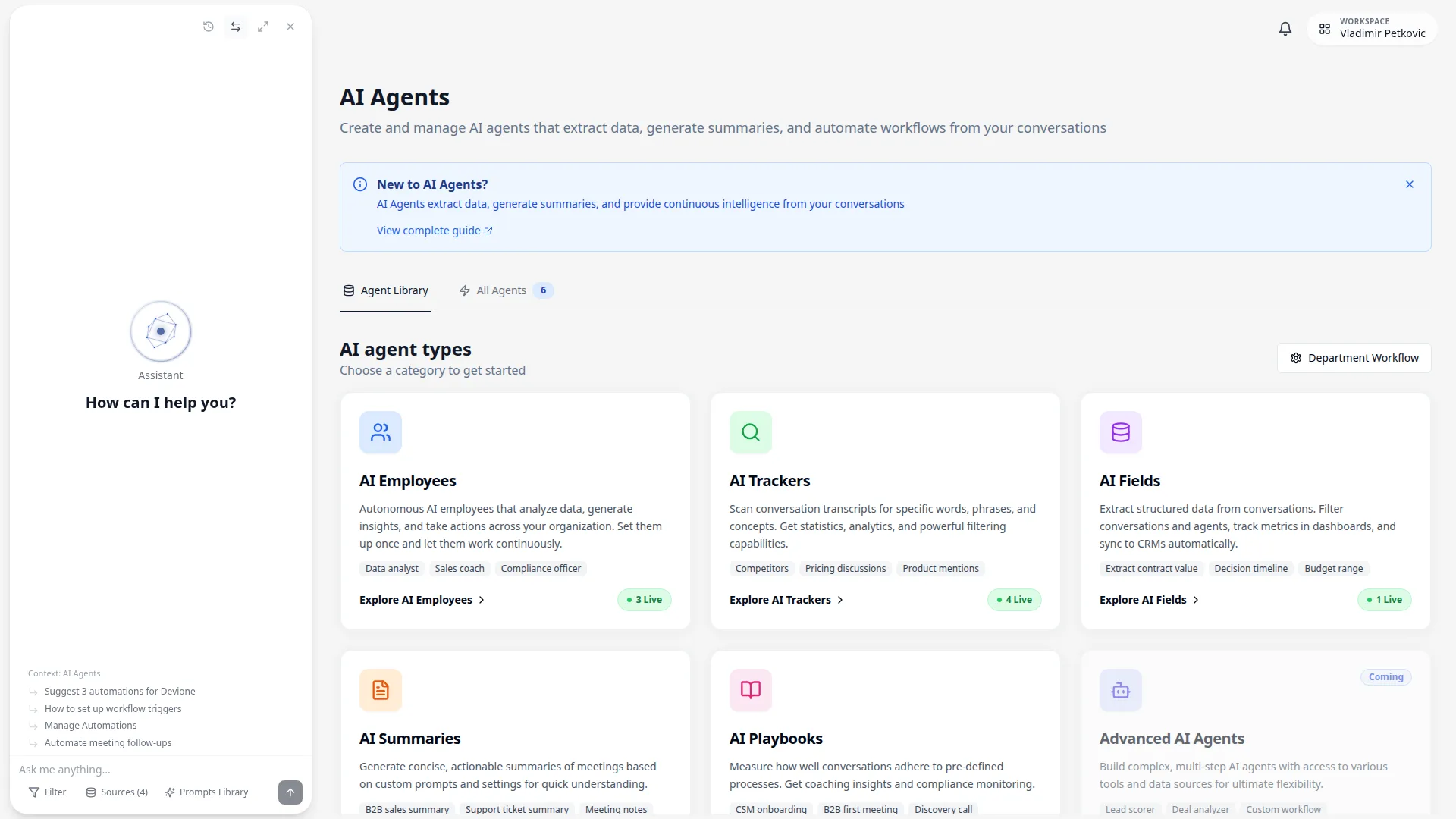
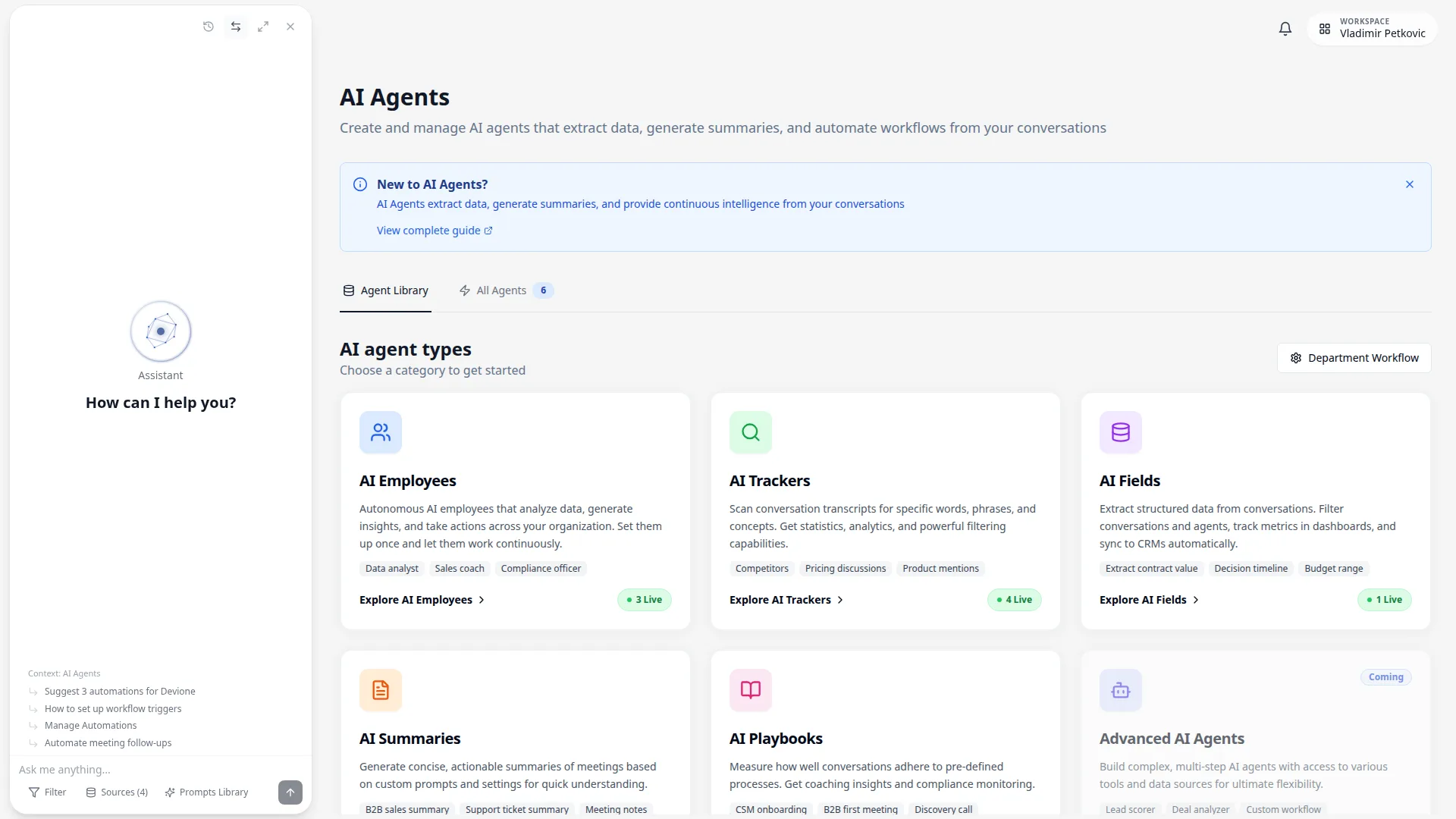
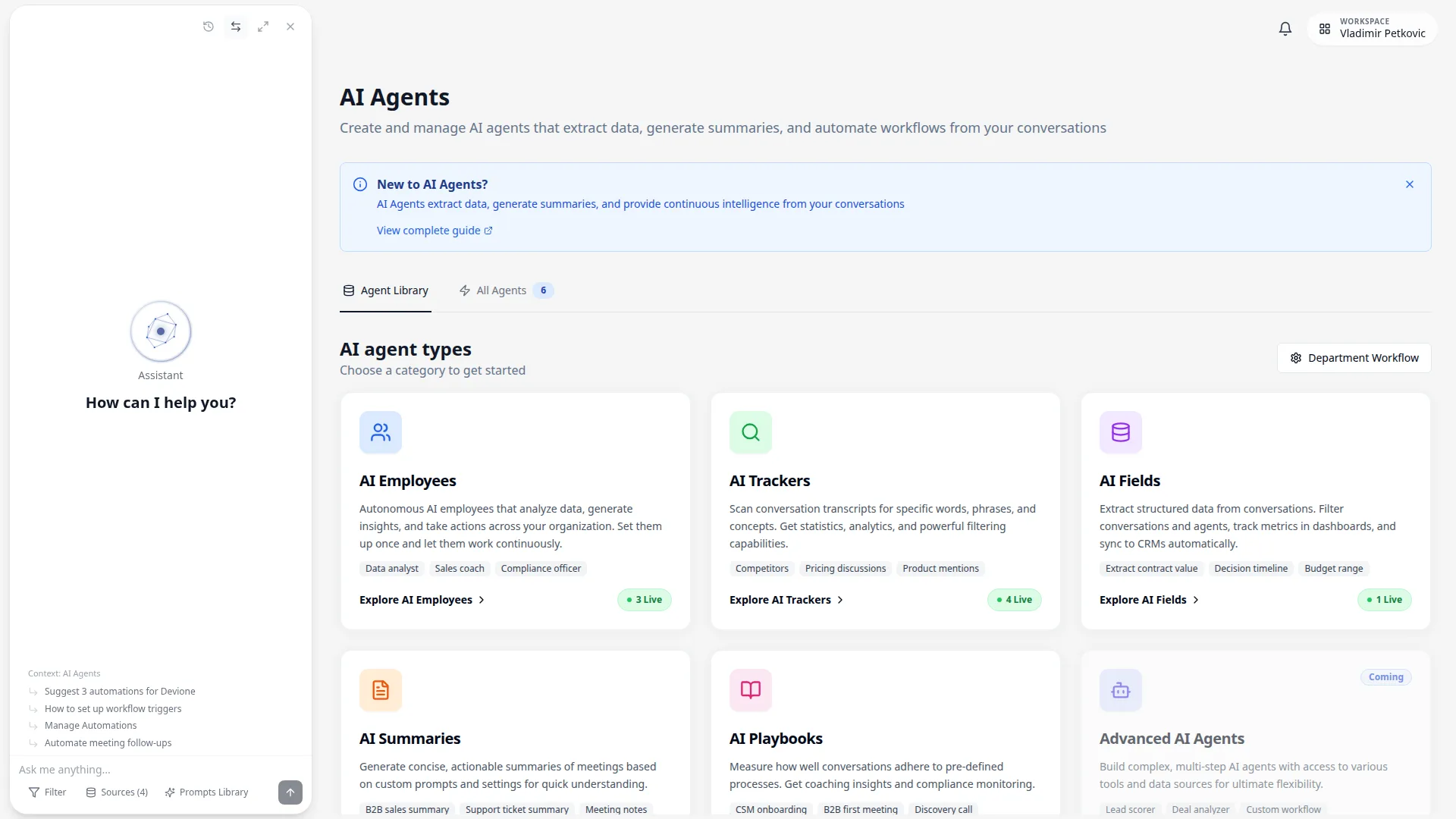
From the AI Agents page, you can review two management views:
- All Agents view: Name, type, status, category, last updated, created by and runs count
- Quick row actions: Edit, activate/deactivate and delete from the table
- Category management tables: Per-type views (Fields, Summaries, Playbooks, Trackers) with type-specific columns
- Status and scope context: Active/inactive state and configured filters are visible in each automation editor
- Detailed quality checks: Use Test actions inside editors (for example Test Summary, Test Playbook, Test Tracker) before broad rollout
Editing & Updating#
To modify an automation:
- Open the automation from its table row (or click the Edit action)
- Update configuration in the editor (rules, prompts, filters and status as applicable)
- Save changes
- If you need historical reprocessing, use Run on Past Conversations:
- Select a date range to control scope
- Choose mode: Add where missing or Replace existing results
- Start backfill and monitor progress until completion
Workflow Scope & Department Standards#
For AI Agents, workflow department standards are workflow-owned and sync with AI Agent conversation scope. This keeps assignment behavior deterministic across Workflow, AI Agent editors and runtime processing.
How department standards work
- Workflow is the source of truth for department-wide AI Agent assignment.
- If an AI Agent is assigned at department level, all enabled conversation types in that department are in scope.
- Newly created or newly enabled conversation types in that department are auto-added to standard-linked AI Agents.
- Conversation type rename/department moves are propagated so scope stays accurate.
AI Agent filter behavior (Conversation Scope)
- Selecting a department auto-selects all conversation types in that department.
- While a department is selected, those in-department conversation types are locked in the selector.
- You can still include extra conversation types from other departments when needed.
- Other filters (for example medium, owner or company) remain independent and continue to apply normally.
If you remove one conversation type in Workflow
Removing a standard-linked AI Agent from a single conversation type does not silently ignore the change.
- The department-wide link for that AI Agent is downgraded.
- Remaining department conversation types keep the AI Agent as explicit per-conversation-type links.
- The AI Agent editor then reflects the resulting explicit conversation-type scope.
Edit Standard: Department Defaults & Overrides#
Each department has a standard (its default set of automations) that every conversation type in that department inherits automatically. From the Workflow view, open a department row and click Edit standard to open the Department defaults panel and manage what applies to the whole department at once.
What you can do in Edit standard
- System automations: enable or disable the three built-in automations — Meeting summary, Call summary and Topics extraction.
- Additional automations: attach AI agents (Fields, Summaries, Playbooks, Trackers) to the whole department using the same add-automation flow as a single conversation type row.
- Changes you save here become the department default for every conversation type that has not been individually customized.
Defaults vs. overrides (why some types don't change)
- A conversation type is inheriting when it follows the department standard. Changing a department default updates every inheriting type immediately.
- A conversation type becomes an override when you customize its automations individually (in its own row). An override intentionally differs from the department standard.
- By default, editing the standard does not change overrides — this protects the customizations you made on purpose. That is why, after disabling a default, previously customized conversation types can stay enabled.
- To make an overridden conversation type follow the department standard again, clear its override (Clear override) or use the toggle below.
"Also apply to overridden conversation types"
This switch controls whether customized (overridden) conversation types are also updated:
- Off (default): changes apply only to inheriting conversation types. Overrides keep their own settings.
- On: overridden conversation types are overwritten to match these defaults, applying the change across the entire department. Use this to reset a department to a single standard.
Reading the counts at the top
- Total conversation types: every conversation type in the department.
- Affected conversation types: how many will change with the current scope — the inheriting types when the toggle is off, or all types when it is on.
- Overridden conversation types: how many have their own custom configuration.
Troubleshooting Common Issues#
Low Accuracy / Wrong Results
- • Review prompt clarity and specificity
- • Add more examples for AI-based automations
- • Check if edge cases are handled
- • Validate on diverse conversation types
Automation Not Running
- • Verify automation is active (not paused)
- • Check department filters match conversations
- • Ensure sufficient credits available
- • Review error logs for specific failures
Slow Processing
- • Simplify complex multi-step agents
- • Reduce number of fields per conversation
- • Use caching where possible
- • Consider batch processing for non-urgent automations
CRM Sync Issues
- • Verify CRM integration is connected
- • Check field mapping is correct
- • Ensure field types match between systems
- • Review CRM permissions
Tips & Tricks#
Combining Multiple Agent Types#
Get more value by using AI agents together:
Fields + Playbooks
Extract data points (budget, timeline) and score process adherence
Benefit: Complete picture of call quality and deal data
Trackers + Fields
Track competitor mentions with keywords, then extract structured competitor and deal data into fields
Benefit: Know what competitors are mentioned and capture the details for filtering and Insights
Summaries + Fields
Generate a custom summary format, then extract key CRM-ready values into fields
Benefit: Human-readable summaries plus structured data for sync and reporting
Avoiding Automation Overload#
- Start small: Begin with 2-3 high-impact automations, add more as you see value
- Audit regularly: Review which automations are actually being used quarterly
- Consolidate where possible: Use one well-configured field instead of three similar ones
- Set clear owners: Assign someone to maintain each automation
- Track ROI: Measure time saved vs. effort to maintain
Success Patterns#
Start with Pre-Sales
Sales teams see fastest ROI from automations due to structured processes
Example: Budget extraction + decision timeline + playbook scoring = complete qualification automation
Template Your Winners
Once you nail a configuration, save it as a template for other teams
Example: Sales playbook becomes template for CS onboarding playbook
Iterate Based on Data
Review automation accuracy monthly and refine prompts
Example: Track field accuracy, adjust prompts for consistently wrong fields
Involve End Users
Get feedback from reps who see results daily
Example: Sales reps spot when competitive intelligence agent misses key mentions
Common Mistakes to Avoid#
Creating too many similar fields
Why it's bad: Confuses users and adds maintenance burden
Do instead: Consolidate into fewer, well-defined fields
Overly complex prompts
Why it's bad: Harder to debug and may reduce accuracy
Do instead: Start simple, add complexity only when needed
Not testing before deploying
Why it's bad: Bad data is worse than no data
Do instead: Test on 10-15 conversations, review results, iterate
Set and forget
Why it's bad: Conversation patterns change over time
Do instead: Review performance quarterly, update as needed
Ready to Automate?
Start with one high-impact automation and expand from there: